May 16, 2026
Karaoke Maker for Mac: Make Any Song into a Karaoke Track Natively
How to make karaoke tracks on your Mac using a native app—no uploads, no subscriptions, no browser required. Works on Apple Silicon Macs with on-device AI.
If you’ve searched for a karaoke maker for Mac, you’ve probably landed on a list of web tools: Youka, Lalal.ai, Phonicmind. They all work the same way—you upload your song to their servers, wait for processing, and download the result. That works fine until you have a slow connection, hit a file size cap, or just don’t want your audio sitting on a stranger’s server.
There’s a different option: a native Mac app that runs completely offline.
Why Most Karaoke Makers Don’t Feel Like Mac Apps
Web-based karaoke tools are platform-agnostic by design. You’re running them in Chrome or Safari, not on macOS. That means no drag-and-drop from Finder, no Spotlight integration, and the workflow always involves waiting for a file to upload before anything happens.
For Mac users, especially on Apple Silicon, this is a bad tradeoff. Your M1 or M2 Mac contains a dedicated Neural Engine that sits idle while you’re waiting for a server in another city to process your audio.
Native Mac apps built for Apple Silicon can run the same AI separation models locally, using the Neural Engine directly. Processing is fast, there are no file size limits, and your audio never leaves your machine.
SongSplit AI: A Native Karaoke Maker for Mac
SongSplit AI is a Mac and iPhone app that splits any song into a vocal track and an instrumental track. The instrumental is your karaoke track.
It uses Apple’s Neural Engine to process audio on-device. No account, no upload, no internet connection required. Check the App Store page for current system requirements.
How to Make a Karaoke Track on Mac
Here’s the full workflow from song file to finished karaoke track.
Step 1: Get a DRM-Free Audio File
You need a local audio file to work with—MP3, WAV, FLAC, M4A, or AIFF all work. Songs purchased from the iTunes Store, Bandcamp, or Amazon Music are DRM-free and can be used directly. Songs from a streaming subscription (Spotify, Apple Music streaming tier) are protected and can’t be processed.
If you purchased the song through iTunes, open the Music app, find the song, right-click and choose “Show in Finder” to locate the file.
Step 2: Open SongSplit AI and Drop the File
Drag your audio file onto the SongSplit AI window. The waveform loads immediately. No waiting for an upload bar to fill.
Step 3: Choose Your Processing Mode
SongSplit AI offers two modes:
- Fast mode: Processes in seconds. Good for a quick preview or casual use.
- Quality mode: Slower, but produces a cleaner separation with fewer artifacts. Better for a karaoke night or any situation where the track will play through speakers.
For a karaoke track, quality mode is worth the extra time.
Step 4: Process
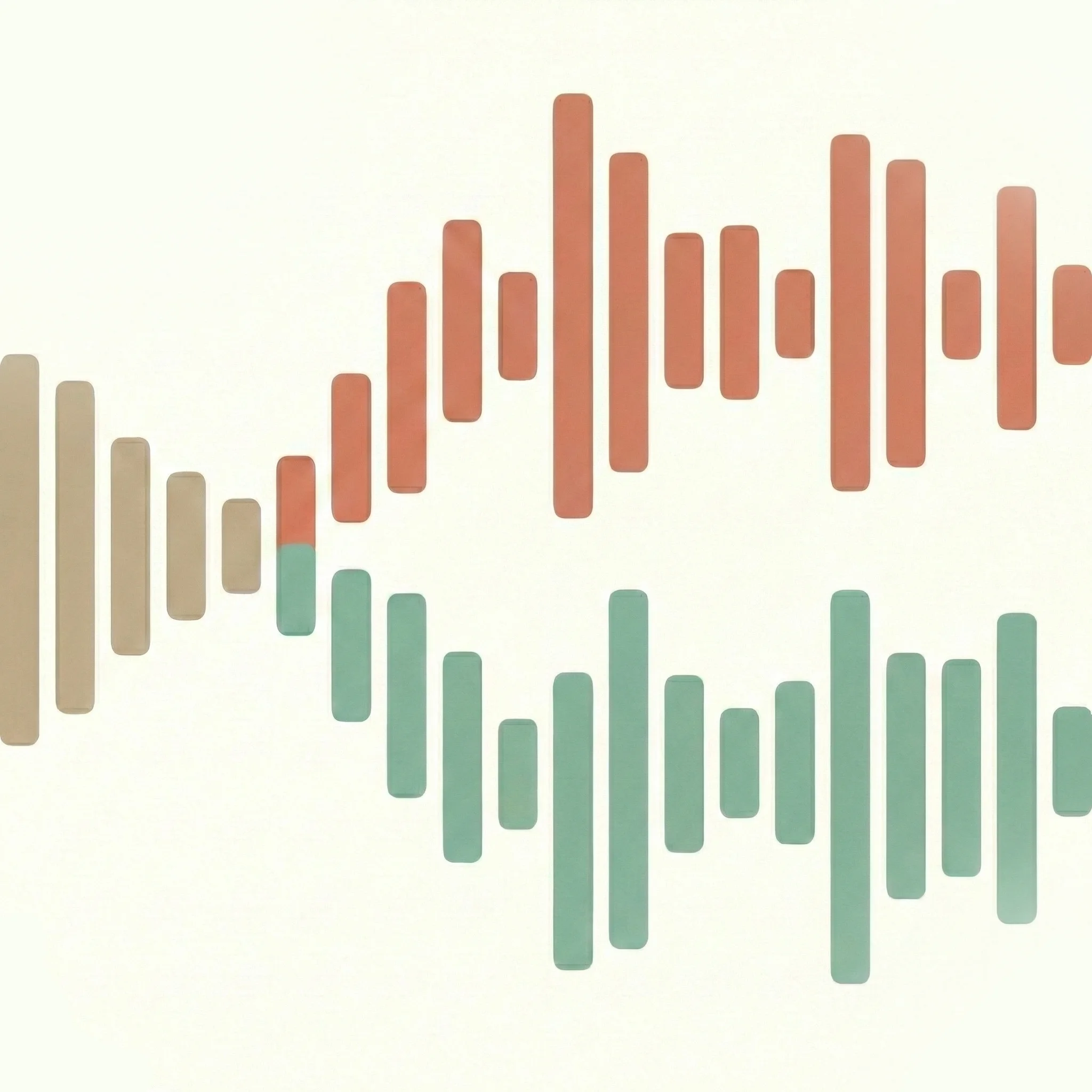
Hit the process button. The Neural Engine handles the separation locally. You’ll see the waveform split into two color-coded tracks: vocals (orange) and instrumentals (green).
Step 5: Preview and Export
Play back the instrumental track before exporting to check the result. Look for obvious vocal bleed-through—some is normal and expected, but you want to make sure it’s at a level you can sing over comfortably.
Export the instrumental as an M4A file. Save it to your Desktop, a project folder, or your Downloads. It’s ready to play immediately.
What to Expect from the Results
AI vocal separation isn’t perfect, and no tool—free or paid, cloud or native—will give you a completely clean instrumental every time. Here’s what affects quality:
Source file quality matters. A 320 kbps MP3 or a FLAC will produce better results than a 128 kbps MP3. If you have the option, use the highest quality file available.
Song type affects separation. Pop and rock tracks with a clear lead vocal and defined instrumentation separate well. Songs with heavy reverb on the vocals, dense layering, or instruments that occupy the same frequency range as the voice are harder.
Some vocal bleed-through is normal. You’ll often hear a faint ghost of the original vocals in the instrumental track. For karaoke, this is fine—it’s quiet enough to sing over. If it’s noticeable at full volume, try re-processing in quality mode.
Is There a Free Version?
SongSplit AI is a paid app on the Mac App Store. There is no subscription. You pay once and own it.
If you want to try before buying, the Mac App Store page includes screenshots and the full feature description. For a few songs you need to process once, a web tool like Lalal.ai might be sufficient. For regular use, especially if privacy matters or you’re working with unreleased material, a native app that processes locally is the better tool.
Also Works on iPhone
SongSplit AI is available for iPhone and iPad too. The workflow is identical: import from the Files app, process on-device, export. Useful if you want to make a quick karaoke track on your phone before a night out.
If you want a more general guide to karaoke track creation that isn’t Mac-specific, the walkthrough at How to Make a Karaoke Track from Any Song covers the same workflow in more detail, including tips for choosing source files and what to expect from AI separation quality.
Ready to split?
Download SongSplit AI and start separating your favorite songs today.