
May 22, 2026
How to Make a Karaoke Track from Any Song
A complete guide to creating karaoke versions of any song using AI stem separation. Covers Mac, iPhone, source files, quality tips, and how to use your finished track.
A karaoke track is just the instrumental version of a song with the lead vocal removed. That sounds simple, but for most songs, no official karaoke version exists. The ones that do exist in karaoke bars are usually recreated by session musicians, which is why they sound slightly off. The good news: AI stem separation lets you create a karaoke version of any song yourself, directly from the audio file you already own. This guide covers the full process from finding your source file to playing the finished track through a speaker.
What Is a Karaoke Track?
A karaoke track is the original recording with the lead vocal stem removed. A good karaoke track keeps the full arrangement intact: drums, bass, guitars, synthesizers, any backing vocals, and all the production detail. Only the lead vocal is gone.
Professionally produced karaoke versions (the kind in karaoke bars) are usually rerecorded from scratch by session players working from sheet music. That is why they sound close but not identical to the original. AI separation works differently. It analyzes the actual recording and estimates where the vocal sits in the mix, then removes it. The result uses the original production, so it sounds exactly like the record, minus the singer.
The quality is not perfect. There will be some faint vocal bleed-through in most tracks. For singing over, this is almost never a problem.
What You Need
A DRM-free audio file of the song.
DRM stands for Digital Rights Management. Songs you purchase as downloads are DRM-free and can be processed by any audio tool. Songs you stream through a subscription service are DRM-protected and cannot be processed.
Here is a quick reference:
- iTunes / Apple Music purchases (not the streaming tier): DRM-free
- Bandcamp downloads: DRM-free (MP3, FLAC, or WAV)
- Amazon Music downloads (not streaming): DRM-free
- CD rips using Apple Music on Mac or any CD ripper: DRM-free
- Spotify, Apple Music streaming, Tidal, YouTube Music: DRM-protected, cannot be processed by any tool
SongSplit AI for Mac or iPhone.
- App Store (Mac and iPhone): SongSplit AI
- Mac requirements: Apple Silicon (M1 or newer), macOS 14 Sonoma or later
- iPhone and iPad requirements: iOS 17 or later, A12 chip or newer
Step 1: Find or Prepare Your Audio File
Getting the source file is usually the first question people have.
iTunes or Apple Music purchases: Open the Music app, find the track in your library, right-click it, and choose “Show in Finder.” This opens the folder where the file lives. Purchased tracks are DRM-free. Tracks you only added to your library through the streaming subscription are not the same thing.
Bandcamp: When you purchase and download from Bandcamp, you choose the format. MP3 320 kbps, FLAC, and WAV all work well. Download the highest quality option they offer.
Amazon Music purchases: Amazon sells DRM-free MP3 files. Download the track from your Amazon Music library using the desktop app or the download link in your account.
Ripping a CD: On a Mac, open Apple Music, insert the disc, and go to File > Import CD. This produces a DRM-free file in your Music library. Any dedicated CD ripper (XLD is a good free option on Mac) also works and gives you more control over the output format.
Format and quality: Use the highest quality file you have access to. FLAC or a 256-320 kbps MP3 will produce a cleaner karaoke track than a 128 kbps MP3. The AI separation algorithm has more audio information to work with in a high-quality file, and the difference in output quality is audible.
Step 2: Open SongSplit AI and Import the File
Drag the audio file directly onto the SongSplit AI window. Alternatively, go to File > Open and navigate to the file. The waveform loads immediately. There is no upload progress bar because no upload is happening. The app processes entirely on your device, with no file ever sent to a server.
SongSplit AI accepts MP3, WAV, FLAC, M4A, and AIFF files. If your file is in a different format, convert it first using the free Audio Converter built into macOS or a tool like VLC.
Step 3: Choose a Processing Mode
SongSplit AI gives you two modes.
Fast mode: Processes in seconds. Good for a quick check to see if the song will separate cleanly before committing to the longer process.
Quality mode: Takes longer but produces a noticeably cleaner result. The most audible difference is in how much of the original vocal’s reverb tail lingers in the instrumental. Quality mode removes more of it, leaving a cleaner track.
For a karaoke track you plan to actually sing to, quality mode is worth the extra time. On an Apple Silicon Mac, quality mode on a 3-4 minute song typically finishes in under a minute.
Step 4: Process and Watch the Waveform Split
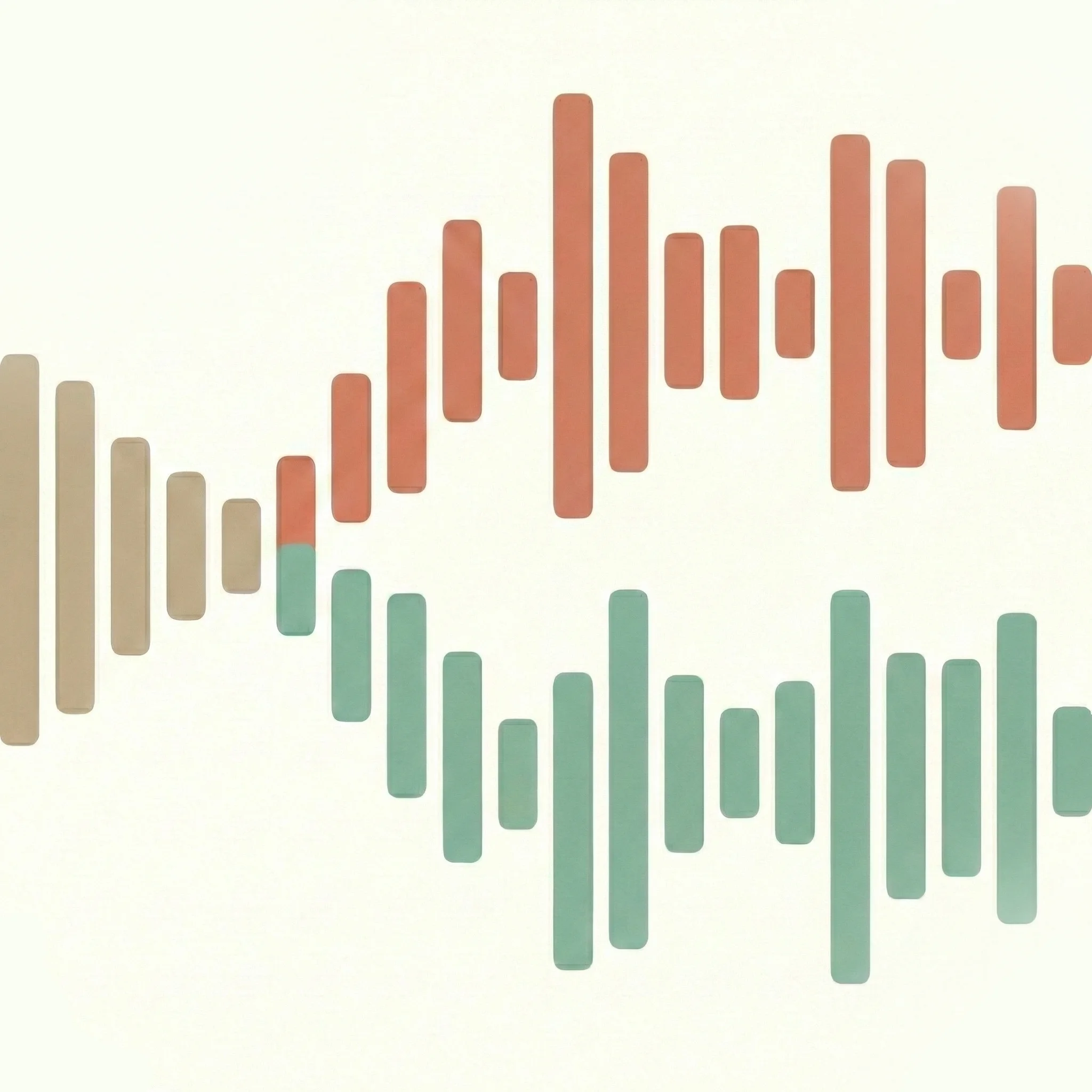
Hit the split button. The waveform display splits into two color-coded tracks: orange for the vocal stem, green for the instrumental. On Apple Silicon hardware, the processing runs on the Neural Engine, which keeps CPU and battery use low.
You will see the progress update in real time. When it finishes, both stems are available to preview directly in the app.
Step 5: Preview Before You Export
Always preview the instrumental before exporting. Toggle between the vocal and instrumental tracks in SongSplit AI and listen carefully for a few things:
- How much of the original vocal remains. Some faint bleed-through is normal and expected for most tracks.
- Whether the music sounds full and complete. The instrumentation should not sound thin or hollow.
- Any obvious artifacts, such as metallic warbling or smearing sounds, particularly on sustained notes.
If the vocal bleed is heavy, it usually means the song has a particularly dense arrangement or the vocals were heavily processed with reverb and effects. These cases are harder for any tool to clean up. It is a property of how the recording was produced, not a limitation specific to SongSplit AI.
If the music sounds thin in the midrange, it may mean some instruments (piano, acoustic guitar) share frequency space with the vocal and got partially separated out. Compare a few different songs to establish a baseline for what good output looks like with your library.
Step 6: Export and Use Your Karaoke Track
Export the instrumental track as an M4A file. SongSplit saves it to a location you choose.
Once you have the file, here are the common ways to use it:
- Play it directly from your iPhone or Mac through speakers or a Bluetooth speaker
- Import it into GarageBand if you want to loop a section, slow it down, or adjust the key
- Use AirPlay to cast it to an Apple TV or AirPlay-compatible speaker
- Copy it to a USB drive to plug into a karaoke machine or bar system that accepts audio files
- Open it in any standard media player: VLC, Apple Music, Infuse
Tips for Better Results
Source file quality matters. Use the highest bitrate file you have. A 320 kbps MP3 or a lossless FLAC gives the AI more audio data to work with than a 128 kbps MP3. The difference in output quality is audible, especially in the cleanliness of the separation around the vocal edges.
Song choice matters. Clear lead vocals that sit distinctly in the mix produce the cleanest karaoke tracks. Vocals recorded dry (minimal reverb and delay) separate better than heavily effected ones. Pop, rock, country, and hip-hop from the last 30 years generally work very well because the vocal tends to sit up front and separate cleanly from the instrumentation.
Harder cases. Songs with extremely dense vocal harmonies, heavy reverb, or where the vocal blends into the texture of the track (some jazz, some experimental electronic music) will have more bleed-through. This is not a flaw in the tool. It is a fundamental constraint of audio source separation: if two sounds share the same frequency range and space in the mix, a model can only estimate which belongs to which.
Bleed-through is normal. A faint ghost of the original vocal in the instrumental is expected and is almost never a problem for actual singing. Your live voice covers the ghost at normal volume. If you can distinctly hear the original singer at full original-track volume, try reprocessing in quality mode.
Troubleshooting Common Problems
The vocals are still clearly audible in the instrumental. Make sure you are listening to the green (instrumental) track, not the orange (vocal) track. If you are on the right track and the vocal is still loud, switch to quality mode if you have not already. Also try a higher quality source file if one is available. Some songs simply have arrangements where the vocal is very difficult to isolate cleanly. Trying a different track for comparison helps establish whether the problem is song-specific or something else.
The music sounds thin or hollow. This can happen when instruments in the upper midrange (acoustic guitar, piano, some synthesizer pads) get partially attributed to the vocal stem during processing. It is more common with sparse arrangements where the main instrument and the vocal occupy very similar frequency space. If this happens consistently, try a different track to compare.
The app will not open my file. Confirm the file is DRM-free. DRM-protected files will not load in any local processing tool. If the file came from a legitimate purchase and still will not open, check that it is in a supported format: MP3, WAV, FLAC, M4A, or AIFF. If it is a different format, convert it first using a tool like VLC (Media > Convert/Save).
Processing takes a very long time. On Apple Silicon Macs, processing should finish well under a minute for most songs. If it is significantly slower, check that the app is running natively (not through Rosetta), and that your Mac is not in low-power mode.
Using the Karaoke Track on iPhone
SongSplit AI is also available on iPhone and iPad. The workflow is the same: import from the Files app, choose a processing mode, process on-device, export when done. No internet connection is required at any point. The app runs the neural model locally on the device using the A-series chip.
This makes it practical for generating a quick karaoke track right before a night out, without needing a computer. Import the file from iCloud Drive or AirDrop it from a Mac, process it, and you have the track ready to play.
Frequently Asked Questions
Can I make a karaoke track for free? SongSplit AI is a paid app with a free-to-try option on the Mac App Store. Free web tools like vocalremover.org can work for a quick job, though they require uploading your audio file to a server, impose file size limits, and may require an account to export the full result. If you are processing many tracks or want your audio to stay on your device, a local tool is worth the cost.
Does it work with all music genres? It works well with most pop, rock, country, R&B, hip-hop, and electronic music. The more distinct the vocal is from the instrumentation in the original mix, the cleaner the result. Jazz recorded live with a full band and heavy room reverb, or experimental music with layered vocal textures woven into the arrangement, will produce more bleed-through.
Can I create a karaoke video with lyrics on screen? SongSplit AI exports the audio track only. To create a karaoke video with lyrics displayed on screen, import the instrumental M4A into a video editor (iMovie, Final Cut Pro, or DaVinci Resolve), add a video background or color bar, and overlay text with the lyrics timed to the music. iMovie is the simplest option for this and is free on Mac.
What file format does it export?
SongSplit AI exports as M4A. This format plays on every Apple device, in VLC, and imports cleanly into any DAW or video editor. If you need WAV or MP3, you can convert the M4A file using the built-in macOS command-line tool afconvert, or with a free converter app from the Mac App Store.
Can I process multiple songs at once? Currently SongSplit AI processes one track at a time.
How is this different from finding a karaoke track online? Pre-made karaoke versions found online are usually recreated by session musicians, not generated from the original recording. They sound slightly different from the original. AI separation works from the actual recording, so the resulting instrumental uses the exact production, mixing, and arrangement you know from the original. The tradeoff is that AI separation is not perfect and leaves some faint vocal presence; professionally recreated karaoke tracks do not have this issue but also do not sound exactly like the original record.
Related Guides
For more background on how stem separation works technically, including what stems are and how the AI model approaches the problem, see the guide on what audio stems are and how they work.
If you are specifically looking at options on a Mac and want to compare different tools, the best vocal remover apps for Mac guide covers the main options and their tradeoffs.
For using instrumental tracks to practice singing, including how to adjust key and tempo to match your range, see the guide on how to practice singing at home.
Ready to split?
Download SongSplit AI and start separating your favorite songs today.